Preventing “Phantom Clicks” in Browser Extensions Caused by Conflicting Gesture Controls on Large Touchpads
Preventing “Phantom Clicks” in Browser Extensions Caused by Conflicting Gesture Controls on Large Touchpads
Modern laptops include big precision touchpads with the support of several multi-touch gestures for navigation, productivity and accessibility. At the same time, browser extensions have grown more complex by integrating custom shortcuts, gesture detection, floating controls, and interactive overlays to enhance the surfing experience. These methods are efficient in themselves, but often conflict with each other, creating unexpected user engagements, often called phantom clicks. These accidental clicks can cause functionalities of browser extensions to be invoked, instructions to be issued, menus to be opened or web pages to be manipulated without user intention. Understanding the link between touchpad gesture detection, browser event processing, and extension behavior can help limit the risk of unintentional interactions while maintaining a responsive browsing experience for users and developers.
What Are Phantom Clicks?
A phantom click is an accidental mouse and/or pointer activity by the user who did not mean to click. Phantom clicks should not be confused with hardware faults but are usually caused by the software misinterpreting the gestures on the touchpad or processing several input events at the same time. Browser extensions that track pointer activity, gestures, scrolling behavior or touch interaction could confuse normal finger movement for an activation command. Since these events happen quickly, customers often think that the touchpad is faulty when the problem is actually in the software event handling. Identifying the software origin of phantom clicks is the first step to successful treatments.
How precision touchpads deal with gestures
Large touchpads can recognize several points of touch at the same time and turn finger movements into digital input events. Modern gesture systems identify such motions as two-finger scrolling, three-finger swipes, pinch-to-zoom, edge gestures, and tap combinations. Advanced algorithms are continuously analyzing the direction of movement, speed, pressure and finger position to decide what gesture has been performed. Many input events during rapid navigation sessions occur within fractions of a second. Browser extensions that monitor these events need to differentiate between deliberate clicks and complicated gesture sequences, which is becoming more problematic as gesture capabilities continue to expand.
Why Browser Extensions May Misinterpret Input Events
Much of the extension’s functionality is built on event listeners that detect mouse movement, pointer movement, keyboard shortcuts, scrolling and touch. These listeners provide essential features like gesture navigation, rapid search activation, annotation tools, and productivity shortcuts. Problems emerge when numerous extensions listen to the same events while the browser is also handling operating system motions. By a single touchpad operation multiple input signals can be generated and interpreted separately by different extensions. One extension, if not filtered and prioritized correctly, could confuse the completion of a motion with a normal click, resulting in unexpected interface behaviors while the user is otherwise browsing normally.
Gesture Recognition for Operating System and Browser Interaction
But before the browser gets any events , the operating system is the main translator of touchpad input . The frameworks of gesture recognition attempts to recognize scrolling, tapping, dragging, and navigation actions with low false positives. But since the OS may provide input data in different ways, web apps often receive both processed gesture information and lower-level pointer events. Browser extensions that directly interact with these event streams may get duplicate or partially processed information. There is a difference in how operating systems perceive gestures and how browsers handle events, therefore there is a greater chance of contradicting interpretations, especially for fast multi-touch engagements that involve complicated navigation motions.
Common situations that can result in phantom clicks
Phantom clicks occur all too often when you quickly swipe across a huge touchpad. Sometimes, small finger repositioning during multi-finger scrolling can be mistaken for touch motions by some addons. When switching between browser tabs while hovering over extension interface items, gesture controls may also be unintentionally used. Sometimes, drag-and-drop actions generate extra pointer events when finger contact changes unexpectedly during motion. Browser tools that are gesture sensitive and that activate context menus, floating buttons, or page overlays are especially vulnerable to these situations, since they react to incoming pointer actions rapidly with little latency.
Better Extension Configuration to Reduce Conflicts
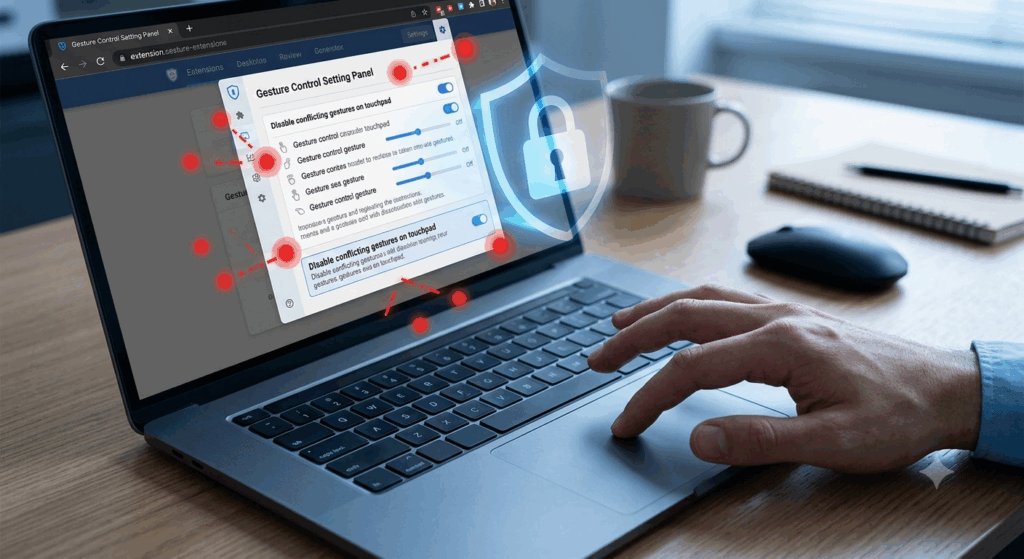
If properly configured, the plugin can minimize the number of phantom clicks dramatically while still providing essential functionality. Disabling the unwanted gesture recognition options in extensions clears out competing event handlers that can interfere with your touchpad input. Extensions that provide customizable activation methods should do so via explicit keyboard shortcuts or specialized interface controls, and not rely solely on gesture recognition. Reviewing extension permissions can also assist uncover software that tracks pointer behavior during every browsing session, but doesn’t need to. By limiting overlapping functionality between installed extensions, you provide a cleaner event processing environment and less opportunity for input interpretation conflicts.
Reliable Gesture Handling: Developer Practices
Extension developers can reduce problems with phantom clicks by carefully validating events before responding to user input. Decoupling the gesture identification from the click detection eliminates the unintended triggering of the same activities through numerous input modalities. By adding small delays to confirmation, the gesture sequence can finish before click events are processed, hence reducing false activations in complicated interactions. Developers should, if possible, respect the gesture priority of the operating system rather than overriding the native behavior. Moreover, testing on multiple touchpad sizes, browser versions, and operating systems enhances compatibility by identifying minor changes in event generation that might otherwise be missed during development.
Delivering a Consistent Browsing Experience on Contemporary Touchpads
And as touchpad technology advances, addons to the browser have to grow with ever-more complex gesture-recognition technologies. Users should keep everything up to current . Browsers , operating systems , touchpad drivers , and extension software are continually updated to improve input processing and compatibility . It is a good practice to evaluate the installed extensions from time to time to get rid of redundant gesture features unnecessarily competing for browser events. If you’re a user who relies significantly on precise touchpads, focus on extensions that provide efficient event handling and customizable ways to engage. With careful extension management, accurate gesture recognition, responsible software development, and frequent system maintenance, users may significantly reduce phantom clicks without losing the smooth, intuitive browsing experience we expect from today’s huge precision touchpads.