Fixing Input Latency in Remote Desktop Web Clients During Heavy Graphical Processing Tasks
Fixing Input Latency in Remote Desktop Web Clients During Heavy Graphical Processing Tasks
Remote desktop web clients have become an important tool for accessing computers from nearly anywhere using a basic web browser. These platforms are rapidly being used by businesses, educational institutions and even individual individuals to manage servers, edit papers, monitor systems, and even execute graphics-intensive work without installing dedicated desktop applications. While modern remote desktop solutions have made tremendous strides in responsiveness, users sometimes experience a substantial lag in user input when engaged in demanding graphics tasks. Even with a good Internet connection, you could experience lag while moving your mouse, unreliable keyboard input, and sluggish UI interactions. Usually, these problems are caused by several technological challenges combining together, rather than a single hardware limitation. Understanding how remote desktop systems handle user input when running graphically intensive tasks can assist users achieve better responsiveness and maintain a smoother remote working experience.
How Do Remote Desktop Web Clients Handle Input
How does a remote desktop web client work ? When you press a key or click your mouse , the client captures this information in the browser and sends it over the network . The remote computer performs the desired action and sends back a refreshed image of the display to your screen . This communication loop is used for every mouse movement, every key stroke and every interface interaction. While this procedure generally takes less than a second, it depends on the cooperative effort of the browser , the operating system , graphics hardware , network infrastructure , and remote desktop software . Any delay imposed at one stage affects the entire interaction making the desktop seem less responsive even if the distant computer itself is powerful.
Why does heavy graphics work increase latency?
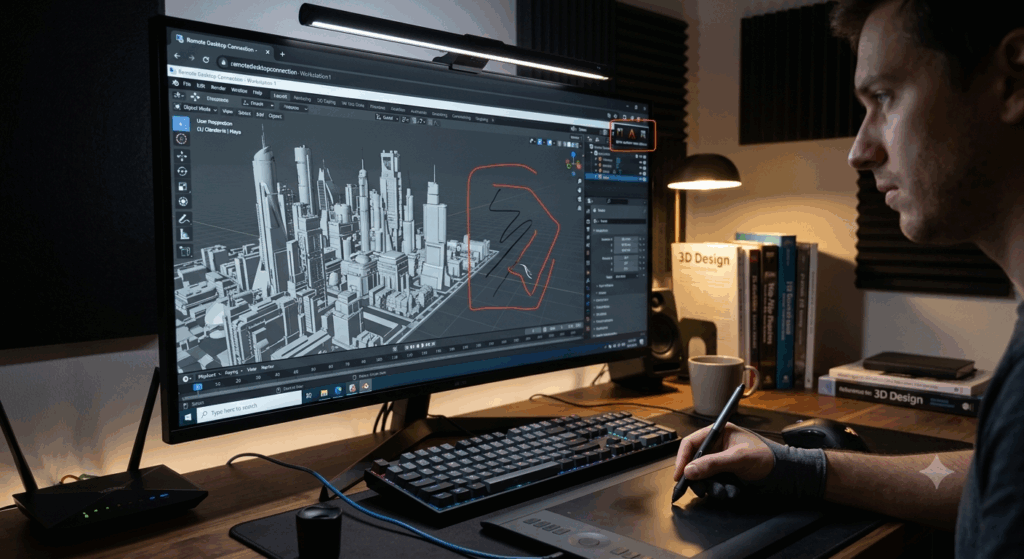
Graphically intensive programs impose a heavy burden on the remote machine’s graphics processor, central processor, memory, and display rendering pipeline. The tasks of 3D modeling, video editing, interactive simulations, advanced design software, and huge data visualization are constantly producing new graphical frames that must be encoded for transmission. As the rendering becomes more complicated , the distant system spends more time generating visual updates at the expense of immediate processing of incoming user input . When graphical sessions become demanding, contention for hardware resources can often lead to lag in cursor motion, slower responses to menu commands, and less fluid movement through the interface.
How the Browser Affects Remote Desktop Performance
Unlike dedicated remote desktop software, browser-based clients use the browser’s rendering engine to efficiently render the remote desktop interface. The browser has to decode incoming video frames, produce new screen information, interpret user interactions, and handle several background jobs simultaneously. Having many browser tabs open, active extensions, memory intensive websites or insufficient hardware acceleration can limit resources available for remote desktop processing. Hence, browser performance becomes a significant element affecting the perceived immediacy of input, especially when processing visually intensive distant jobs that require continual screen refreshes.
Network Conditions: More Than Just Bandwidth
Many people think that if you have a faster internet connection, you would not experience lag when using a remote desktop, however bandwidth is only one part of network performance. Stable communication also rely on latency of the network, the consistency of packets, dependability of the connection and predictable time of transmission. Remote desktop solutions send a constant stream of compressed display updates in addition to user input data during graphically intensive sessions. Available bandwidth is more than enough but delays in screen refreshes can be caused by temporary packet loss, variable latency or irregular routing. More often than not, consistent network quality will give you more improvement than merely getting the maximum connection speed.
Graphics Encoding & Compression Overhead
Remote desktop platforms constantly compress and send visual information over the network. Efficient compression minimizes the bandwidth required but demands additional processing time on the remote computer. As the graphical complexity increases, so does the processing effort, since the encoding algorithms have to examine more detailed visual changes between subsequent frames. Highly dynamic scenes with animations, fast camera motion or complicated interface changes provide more visual information that requires more effective compression. This extra processing produces minor delays that build over long graphics sessions, leading to apparent input lag during interactive operations.
System Resource Management for Better Responsiveness
Tuning the local as well as the remote system greatly enhances the responsiveness of the remote desktop under heavy workloads. Closing unused applications on the remote computer frees up CPU time and memory for active graphical functions. Similarly, a cleaner local browser has less background activity, so it can handle incoming display updates and user input more quickly. Latest graphics drivers , latest browser versions and effective hardware acceleration work to increase rendering performance without unwanted delays . Also, adequate available memory eliminates excessive resource contention that could otherwise degrade communication between the browser and the remote desktop session.
Maximizing Display Settings Without Compromising Productivity
The way the display is configured is very critical to finding a balance between visual fidelity and interactive responsiveness. To produce and transmit higher display resolutions, multiple screens and optimal image quality, more computing power is needed. Choosing medium display resolutions or minimizing unneeded graphical effects can reduce visual complexity, reduce encoding workload, and increase consistency in frame delivery. Most remote desktop solutions include adaptive quality settings that automatically vary the fidelity of the image depending on available system capabilities and network circumstances. These enhancements help ensure smooth interaction with graphics-intensive professional tasks.
Create Trusted Remote Desktop Workflows
As the performance of browsers, graphics hardware and remote computing platforms improve, the performance of web-based remote desktops will continue to improve to the point where they can support demanding graphical programs. However, to maintain low input latency at all times, you have to consider the efficiency of the browser, the stability of the network, the processing of graphics, the management of system resources, and the setup of the display. Users that stay up to current with their software, limit background activity not needed, optimize graphics settings and check for network consistency often find their remote desktop sessions more responsive. With an understanding of the complex interplay between browser rendering, graphics encoding, network communication, and hardware performance, users can effectively mitigate input latency and develop workflows for remote desktops that can be relied on to handle the most demanding of graphical processing tasks.